

Guides / All teams
How to structure documentation for AI search, LLMs and RAG
How AI search engines and RAG assistants read your docs, and how to structure pages, headings and sections so they find the right answer and cite it.
Published 11 November 2026 by the Docvora team
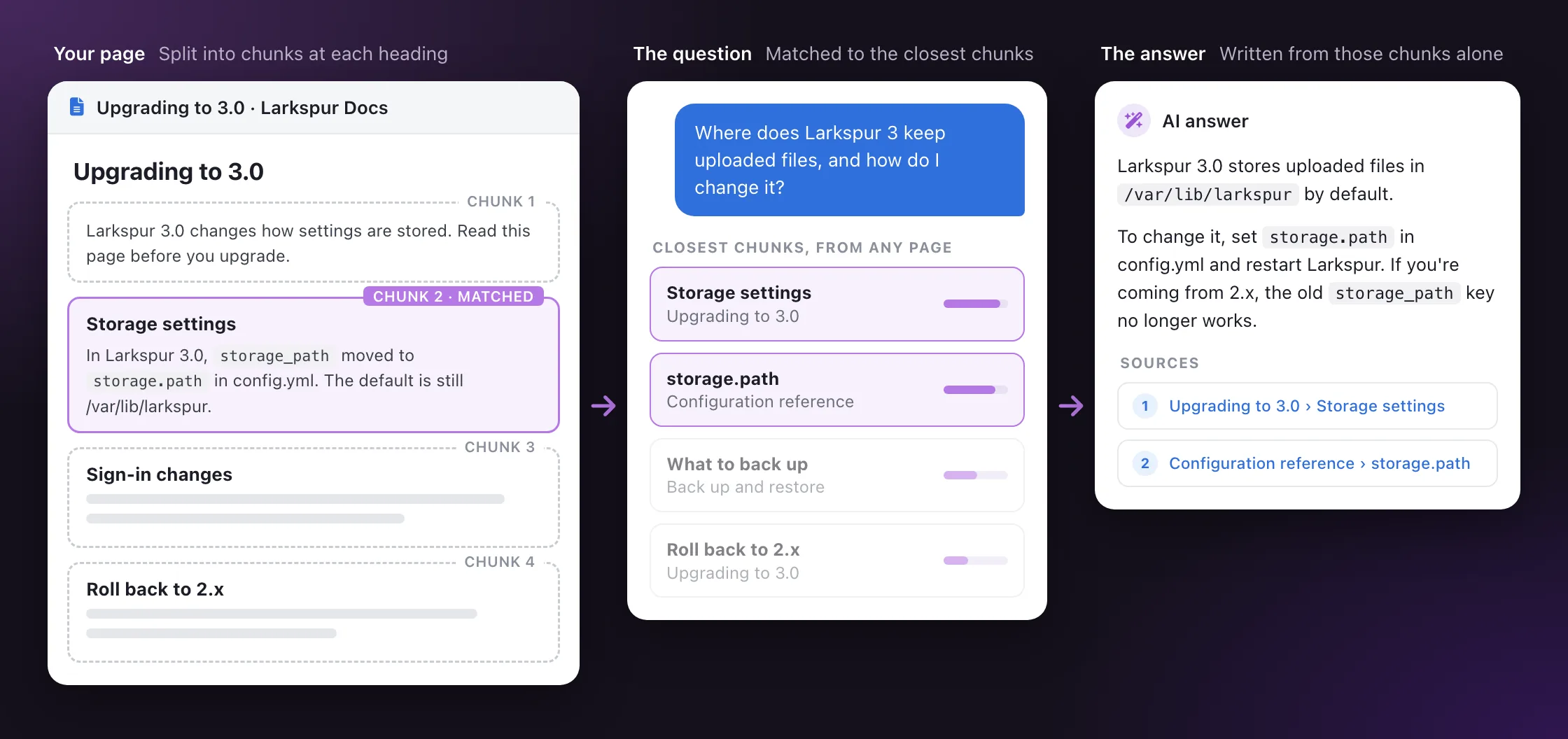
A growing share of the people who need your docs never open them. They ask ChatGPT, Claude, Perplexity or Google, or the assistant on your own help centre, and read the answer it writes. That answer comes from your documentation, but the AI doesn't read your docs the way a person does. It fetches your pages, cuts them into small pieces, picks the few pieces that look closest to the question and writes an answer from those alone.
When the right piece doesn't make sense on its own, the answer comes out vague or wrong, and the reader blames your product rather than the AI. The good news is that most of the fixes also help people who skim and search: clear headings, sections that stand on their own, and one current answer to each question. This guide covers what to change in your writing, what to check on your docs site, and what to get right if you're building an assistant on your own docs.
How AI tools read your docs
AI search engines and the chatbots teams build on their own docs mostly work the same way. The approach is called retrieval-augmented generation, or RAG, and it has five steps:
- Fetch. A crawler or an import job collects your pages.
- Split. Each page is cut into chunks, usually at headings, and usually a few hundred words long.
- Index. Each chunk is stored so it can be found by meaning as well as by keyword.
- Retrieve. When someone asks a question, the few chunks that match it best are picked out, often from several different pages.
- Answer. The model writes a reply from those chunks, usually with a link to where they came from.
The model never sees your sidebar, your page tree or the paragraph three sections up. It sees the question and a handful of fragments. That changes what a well-structured page looks like, because the unit that matters is the section, not the page.
Make every section make sense on its own
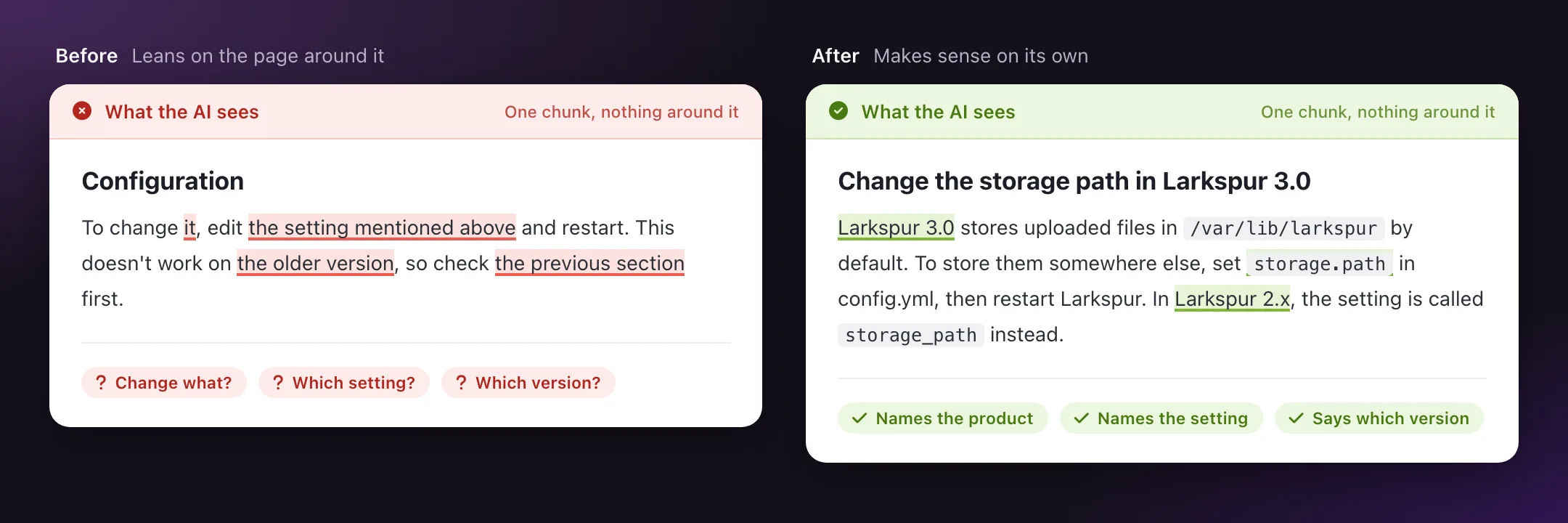
This is the change that makes the biggest difference. Read a section of your docs as if it were the only thing on the screen. Would someone know which product it's about, which version it applies to, and what "it" refers to?
Docs written to be read from top to bottom lean on what came before: "as mentioned above", "this setting", "the previous step". A person can scroll up. A chunk can't.
- Name the thing. Write "the storage path" rather than "this setting", and name the product where it matters.
- Say which version or plan it applies to in the section itself, not only in a version picker or a badge at the top of the page.
- Keep warnings with the steps they're about. If a fix can lose data, say so in that section, not in a "Notes" section at the bottom of the page.
- Link instead of pointing. "See Back up your data" with a link still works when the section is cut out. "See above" doesn't.
You don't need to repeat everything everywhere. One sentence of context at the start of a section is usually enough.
Write headings that say what's in the section
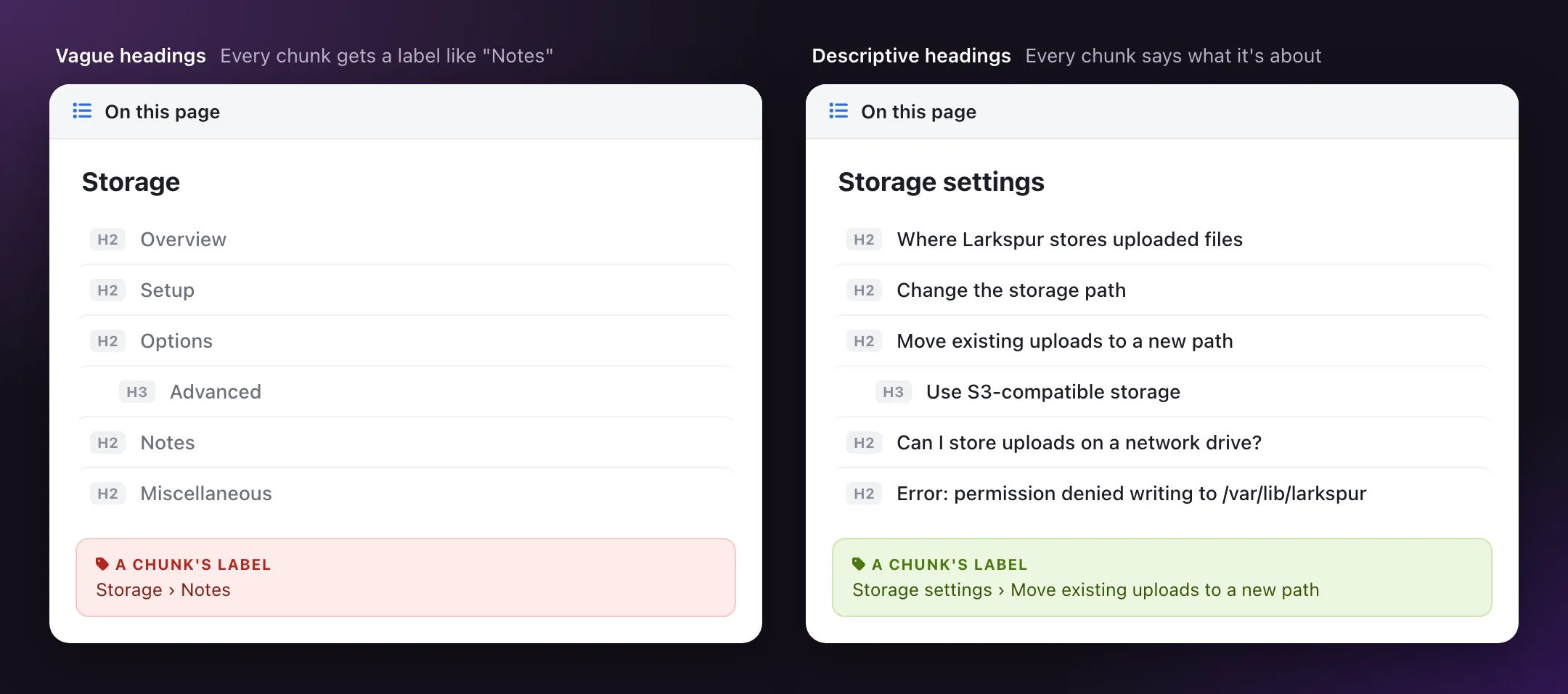
Headings do two jobs for an AI tool. They decide where a page gets split, and many tools add the heading to every chunk under it as a label. A heading like "Overview" or "Notes" tells the tool nothing about what follows.
Write headings that describe the section, in the words your readers use:
- Name the task: "Change the storage path" rather than "Storage"
- Use a question where people ask one: "Can I run Larkspur without Docker?"
- For troubleshooting, use the exact error message as the heading, because people paste errors into AI tools as often as into search boxes
- Avoid headings that could sit on any page, like "Overview", "Details", "More information" and "Miscellaneous"
Keep heading levels in order, with subsections under a main heading and no levels skipped. Tools that split on headings use the levels to work out what belongs together. Bold text styled to look like a heading isn't a heading, so a page built that way may not get split at all.
For more on writing pages people can skim, see how to write documentation people actually use.
Put the answer first
AI tools lean heavily on the first lines of a chunk, and so do search snippets. Start each section with the answer, then give the details.
This opening makes the reader, and the AI, get through two sentences before learning anything:
Single sign-on has been one of our most requested features, and we've worked hard to make it flexible. There are a few things to think about before you set it up.
This one answers the question in its first sentence:
Larkspur supports single sign-on with SAML and OpenID Connect on the Team plan. To set it up, you'll need admin access to both Larkspur and your identity provider.
The same goes for limits, defaults and yes-or-no questions. If the answer is a number, put the number in the first sentence.
Give each question one current answer
When two pages answer the same question differently, an AI tool may use either one, or blend them into an answer that matches neither. This is one of the most common causes of wrong AI answers about a product, and it usually comes from docs that grew rather than being planned:
- A page for version 2 still live next to the page for version 3
- The same steps written out in the getting started guide, the FAQ and a troubleshooting page, each updated at a different time
- A release note or blog post that describes a feature as it worked at launch
- Pages for features you've since removed
Pick one page as the home for each topic, and link to it from everywhere else instead of repeating the steps. Archive pages that are out of date, and redirect their old URLs to the current page.
If you keep docs for older versions, say which version a page covers in its first lines, such as "This page covers Larkspur 2.x. For 3.0 and later, see Change the storage path." That sentence ends up in the chunk. A version dropdown doesn't.
Page size matters too. Aim for one task or topic per page. A long page that covers ten unrelated things gets split into chunks that all carry the same vague page title, and a topic spread across five short pages loses the context that ties it together.
Keep important facts in the text
Most AI tools work from text. Anything that only exists in a screenshot, a diagram or a video is usually invisible to them, and often to your own site search as well.
- Write the steps out, even when a screenshot shows them. Use the exact labels from the interface in bold, such as Settings then Storage.
- Give images alt text that says what they show, not just "screenshot".
- If a video walks through a task, put the steps in text on the same page.
- Keep tables short, and give each one a sentence before it saying what it lists. A table split across two chunks loses its header row, and with it the meaning of every row in the second half.
- Check content hidden in tabs or expandable blocks. If it's only loaded when someone clicks, crawlers won't see it.
Make sure AI crawlers can reach your docs
The writing only matters if the tools can get to it. A few checks cover most problems.
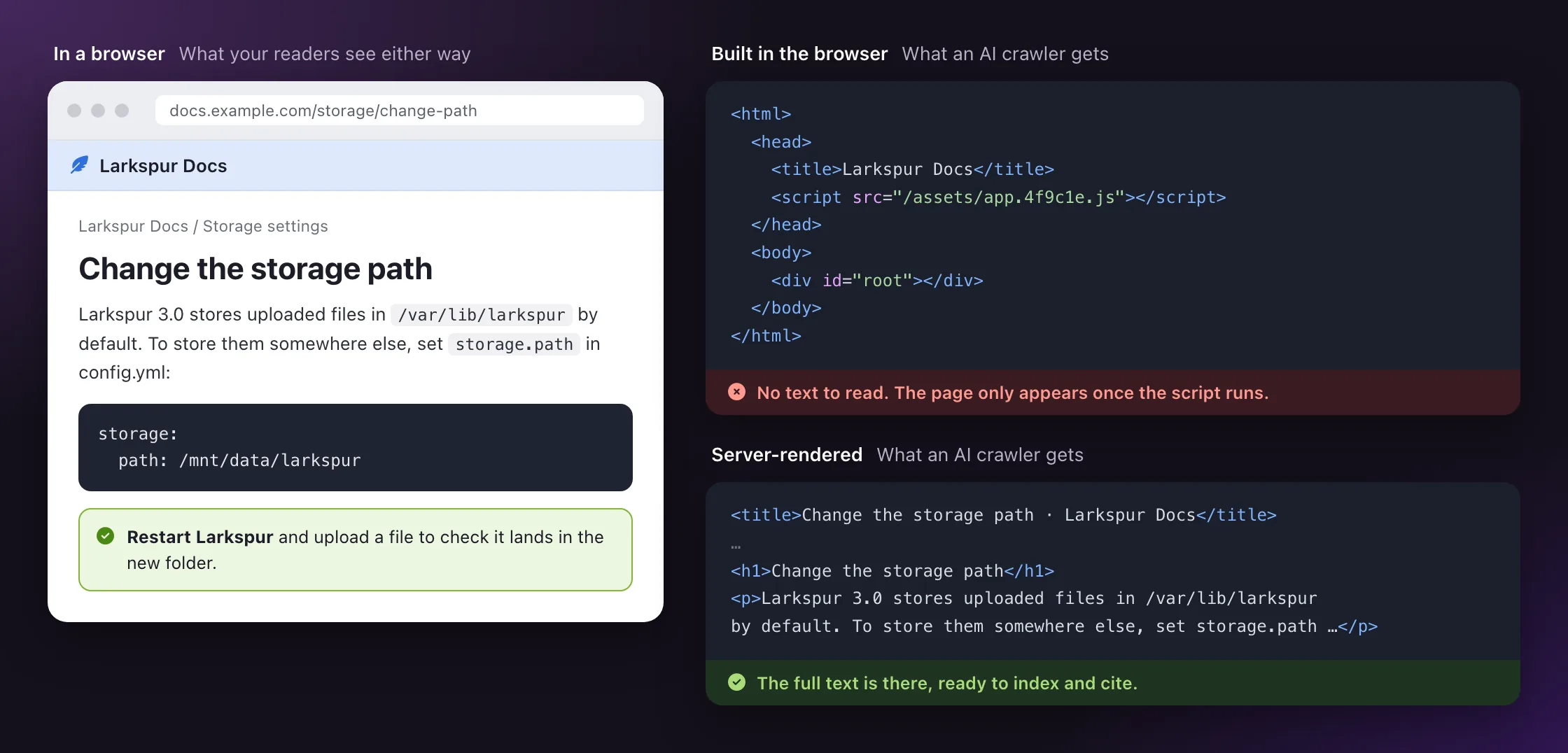
Send the content in the HTML. Most AI crawlers read the HTML your server sends and don't run JavaScript. When Vercel studied AI crawler traffic, none of the major AI crawlers it looked at ran JavaScript, and that's still the safe assumption. If your docs site builds its pages in the browser, a crawler may get an empty page. To check, open a page and use View page source (not the inspector), or run curl on the page's URL, then search for a sentence from the page. If it isn't there, the crawlers can't see it either.
Check your robots.txt. Plenty of sites blocked AI bots a couple of years ago and forgot about it. OpenAI and Anthropic now run separate bots for separate jobs, which lets you choose what to allow:
- Training bots collect pages to train future models: GPTBot from OpenAI and ClaudeBot from Anthropic. Google uses a separate rule called Google-Extended for its AI models, and blocking it doesn't affect Google Search or AI Overviews.
- Search bots index pages so AI search can find and cite them: OAI-SearchBot for ChatGPT search, Claude-SearchBot and PerplexityBot.
- User bots fetch a page when someone asks the assistant to look at it: ChatGPT-User, Claude-User and Perplexity-User.
For public product docs, most teams are better off allowing all of them. A model that was trained on your docs already knows your product before anyone searches. If you'd rather be cited in AI answers without being used for training, block only the training bots:
User-agent: GPTBot
Disallow: /

User-agent: ClaudeBot
Disallow: /

User-agent: Google-Extended
Disallow: /

User-agent: *
Allow: /

Sitemap: https://docs.example.com/sitemap.xml
Keep your sitemap accurate. A sitemap that lists every public page with a correct last-updated date tells crawlers which pages have changed, so they come back for the new version sooner. Archived pages shouldn't be in it.
Use one URL per page. If a page can be reached at several addresses, a canonical tag tells crawlers which one is the real one, so they don't store the same content twice.
Keep private docs behind a login. A noindex tag keeps a page out of search results, but it isn't access control. Anything a crawler can fetch, it can read. Internal pages should need a login and stay out of the sitemap.
Add structured data. Article markup with the title, description and published and updated dates helps search engines understand what a page is and how fresh it is. It's a small signal rather than a fix, so it's worth having if your docs tool adds it, but not worth a project of its own.
What about llms.txt?
llms.txt is a proposed standard: a Markdown file at the root of your site, such as https://docs.example.com/llms.txt, that lists your most important pages with a line about each, so an AI tool can find them without crawling the whole site.
# Larkspur

> Larkspur is a self-hosted bookmark manager for small teams.

## Docs

- [Install with Docker](https://docs.example.com/install-docker): Requirements, the docker run command and how to check it worked
- [Configuration reference](https://docs.example.com/configuration): Every option in config.yml with its default
- [Upgrading to 3.0](https://docs.example.com/upgrading/v3): Breaking changes and the config keys that moved
It's worth being clear about what it does and doesn't do. Google has said its search doesn't use llms.txt, the AI search companies don't say their crawlers read it, and studies of server logs this year found that most llms.txt files are rarely or never requested. The main readers so far are coding assistants and AI agents, which use it to find the right page in a developer's docs quickly. If your docs are for developers and your tool can generate the file for you, it's worth having. Otherwise, your time is better spent on the rest of this guide.
If you're building an assistant on your own docs
If you're adding an AI assistant to your help centre, or building one for your support team, you control the whole pipeline. These decisions make most of the difference to the answers it gives:
- Import the source, not the website. Scraping your published docs pulls in navigation, footers and cookie banners with every page. Use an export or an API that gives you each page's content as Markdown or clean HTML.
- Split at headings and keep blocks whole. Don't cut a code block, a numbered list or a table in half. A chunk that ends at step 3 of 6 gives the model half a procedure.
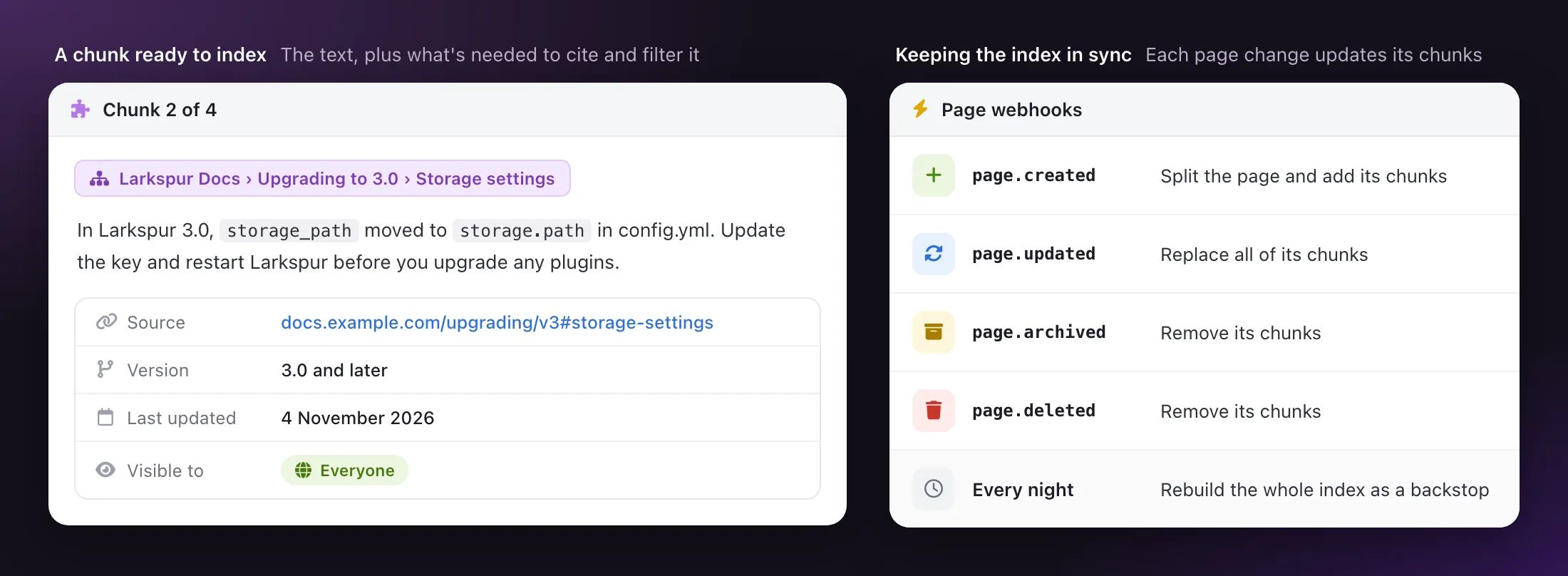
- Add the page title and heading path to every chunk, such as "Larkspur Docs > Upgrading to 3.0 > Storage settings". It costs a few words and gives each chunk back the context the page used to provide.
- Keep the metadata. Store each chunk's URL, version, last-updated date and who's allowed to see it. The URL lets the assistant cite its source, and the visibility stops it quoting a staff-only page to a customer.
- Combine keyword and meaning-based search. Search by meaning is good at matching "how do I move my data" to a page about storage paths, but poor at exact strings like error codes, config keys and version numbers. Most search tools can now run both together, often called hybrid search.
- Update the index when the docs change. An assistant that answers from last quarter's docs gives last quarter's answers. Re-index a page when it's edited, and remove its chunks when it's archived or deleted. Chunks left behind from deleted pages are a common source of answers that contradict the current docs. Webhooks that fire when a page changes are the simplest way to do this, with a full rebuild every night as a fallback.
- Tell the model to say when it doesn't know, and to link to the pages it used. An answer the reader can check is worth more than a confident one they can't.
Test it with real questions
You can't see inside AI search engines, but you can ask them questions. Collect twenty or so real questions from support tickets, chat and your docs search log, worded the way customers wrote them. Ask each one in ChatGPT, Claude, Perplexity and Google, and in your own assistant if you have one.
For each answer, check whether it's right and which page it came from. When it's wrong, the cause is usually one of these:
- No page answers the question. Write one.
- The answer is there, but in a section that doesn't make sense on its own. Rewrite the section.
- An old or duplicate page was used. Archive it, or merge it into the current page.
- Your docs weren't found at all. Check robots.txt, the sitemap and whether the text is in the page's HTML.
Fix the docs rather than the prompt. A prompt change fixes one assistant, while a better page fixes every tool that reads it, and helps the people who read it too. AI search engines can take weeks to pick up changes, so re-test every month or so rather than the next day.
Your analytics can help as well. Visits from chatgpt.com, perplexity.ai, claude.ai and gemini.google.com show which pages AI tools are sending people to, and ChatGPT adds utm_source=chatgpt.com to many of the links it shows. Searches on your own docs that return nothing are worth watching too, as they're usually the same gaps the AI tools are hitting.
A starting checklist
- Read your five most visited pages one section at a time, and fix any section that doesn't make sense on its own
- Rename vague headings like "Overview" and "Notes" so they say what's in the section
- Move the answer to the first sentence of each section
- Find pages that answer the same question, then merge them or archive the old one
- Write out any steps that only exist in a screenshot or a video
- View the source of a docs page and check the text is in the HTML
- Check your robots.txt for AI bots you blocked without meaning to
- Ask twenty real customer questions in AI search tools and note which pages they cite
See what Docvora includes. Public pages are sent as server-rendered HTML with structured data and listed in your sitemap with their last-updated dates, private pages stay out of search, and webhooks and Markdown export make it simple to keep your own assistant in step with your docs.
Get new guides by email
Only when we publish a new guide. Unsubscribe anytime.